Showing posts with label malware. Show all posts

Tuesday, September 3, 2013

Figure 1: New Search Engine in Development
Scenario:
A malicious code had access to a small enterprise of web developers, who are working on building a new search engine that will be participating on the market. Figure 1 shows a screenshot of the new project.

To verify the functionalities of this new search engine, we are going to make some tests. First, we will enter the word "trololo" to see the results. The server response to the request mentioned above is:
Figure 2: Search results for trololo of the new project

As you can see, this modest search engine is not ready to compete in the market, since the database is still very small, and only responds to keywords like "facebook" or "trololo":

Figure 3: Search results for facebook of the new project

Because the database is so poor, the developer has decided to redirect searches to other popular search engine in case that you don't get results. For example, let's try it with the word "nirvana" which is not found in the database corresponding to the new project:

Figure 4: Nirvana Search in the new project

The search is redirected to another search engine and the result can be seen below:

Figure 5: Nirvana Search Results on Bing

As you can see, the previous action aims to continue loading the database based on the response of the other search engines. Broadly speaking, we can understand how the server works.

The problem seems to be that this company has an internal attacker, who was devoted to analyzing vulnerabilities in the search engine, even knowing that it was an alpha version. Additionally, remember that there is a malware that is actively reporting all traffic from the internal network to the outside thereby filtering sensitive information.

A capture of the final traffic sent by the malware can be downloaded here.
Finally, after four days, the server was found in the following state:

Figure 6: Defacement of the search engine

Your job will be to see if it is an external attack executed by the malware author who infiltrated the systems, or whether it is an internal attack. To accomplish this objective You will have to verify the capture available to see if you can get the password of the administrator of that site. If it is possible, what is the password?

Note: In case you find irrefutable proof of his innocence, leave a comment and then develop a small tutorial, demonstrating the accuracy of the analysis. Apparently, only the root user had permissions to modify the files in the web.

Solution:
First, we need a tool to open the file, you can download Wireshark for this purpose, after that, we need to find something unusual in the traffic, as shown in Figure 7, there is an access to a FTP server where a file named data-intrusion.rar was downloaded:

Figure 7: FTP Server Access on Wireshark

In order to get a better view of this traffic we can use the option "Follow TCP Stream", let's see the results:
Figure 8: "Follow TCP Stream" of FTP Server

With this information we can see the credentials that were used to access to the server and the file that was downloaded, then we are going to reassemble the file and see what it contains:

Figure 9: This Image shows the transfer of "data-intrusion.rar"

And the next Figure shows the "Follow TCP Stream" of the RAR File in Raw:

Figure 10: "Follow TCP Stream" of "data-intrusion.rar" in Raw

This stream can be reassembled by pressing "Save as", then name it as you want, but don't forget the ".rar" extension:
Figure 11: "data-intrusion.rar" contains access.log

In the file "access.log" we can see all the requests made to the server and an interesting thing is that the server was attacked by an automated tool to inject SQL sentences.

Figure 12: SQLi requests by an automated tool (sqlmap)

In this case, the log file shows the requests but these are encoded, to learn more about this, please follow this link: HTML URL Encoding Reference
So we need to decode them, in order to make them easier to understand, you can use any tool for that purpose (I used a web app):

Figure 13: SQLi requests decoded (Easier to understand).

Example of one of the requests found in the log file:
"GET /search.php?q=facebook' AND ORD(MID((SELECT IFNULL(CAST(user AS CHAR),0x20) FROM challenge.users ORDER BY id LIMIT 1,1),5,1)) > 116 AND 'zJfx'='zJfx HTTP/1.1" 302 622 "-" "sqlmap/1.0-dev (1bae9955b7) (http://www.sqlmap.org)"

We can see that the tool (sqlmap) made some requests with the objective of getting a dump of the database, the tool is using the keyword "facebook" that would return a 200 code, with this the attacker can dump sensible information, to verify this, we can create a script that shows the results of the requests:

Figure 14: Script to extract useful information from access.log

In Figure 14, we can see the users & passwords that were extracted by the attacker, the last 2 lines are md5 hashes that can easily be cracked.

Decrypted Info:
user: root
password: pepe

user: guest
password: hacker

With these credentials the external attacker can easily make a defacement, so with this we verify that there is no internal attacker, or in this case, the internal attacker was not responsible for the defacement.

Wednesday, July 3, 2013

A common technique, used by malicious attackers to fool their victims, is using the Unicode special character U+202E known as an annulment from right to left to make the malicious file appears as a PDF document instead of a potentially dangerous executable file.

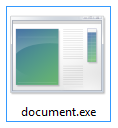
To understand this concept, let's imagine that our malicious file is "document.exe" (see Figure 1):
Figure 1: Malicious file recently created with no changes.

Now we are going to follow the steps below to accomplish our goal:
  • Open the Windows Character Map (Start, Run, charmap)
  • Find and Copy the Unicode character U+202E. Notice that at the bottom left shows the ASCII value of the characters (see Figure 2).
Figure 2: Charmap with U+202E selected and copied.

  • Paste (Ctrl + V) the character just before the extension point: "document[[U+202E]].exe"
  • Enter the extension that you want but in reverse, for example, if we want "doc", we need to write "cod", or if we want "pdf", then we need to write "fdp".
The result will be something like the file shown in Figure 3.
Figure 3: Malicious file renamed with the special character.
(The real name of the file without the special character should be: "documentfdp.exe")

Finally, to perfect the infection vector, a good idea would be to change the icon of the malicious file and also use a name that can trick the user, considering that the "exe" or the original extension must remain. E.g.:
Figure 4: Malicious file disguised as a Microsoft Word file, with a tricky name in order to preserve the original extension and fool the user.

The malicious file is ready to be delivered to the target and the following happens:
Figure 5: Common Infection Flow (TrendMicro)

If the victim executes the malware (Double Click or Enter), the following screen would appear:

Figure 6: Malicious File starts a command prompt and shows a message: "Hello World".

Now, let's look at the title of the shell: "annexe.doc", apparently our technique is almost perfect because we can't see the original extension even in the command line, or we can?

Possible Countermeasures:

  • If we try to rename the file (F2), we will see something strange, this effect is produced by the special character, so this is a clue to realize that something is wrong.
  • If you are in a GNU/Linux based system, you can check the headers of the file with some commands.
  • Another trick that you can use to verify the name of any file and its extension could be using the command prompt, but how?
To prove this theory we need to open a new "cmd.exe" in the location of the suspicious file, after that, we write the first two characters of the name and press "Tab", the system will autocompletes the true name, then we will know the truth!! (See Figure 7).

Figure 7: Revealing the true name of the suspicious file and executing it.

As shown in Figure 7, the name of the file has (one or more) strange characters that aren't recognized and are shown as 2 question marks, revealing the presence of the "U+202E" character, that's all, hope you like this post. =)

Monday, June 3, 2013

EICAR Test File

The EICAR Standard Anti-Virus Test File or EICAR test file is a computer file that was developed by the European Institute for Computer Antivirus Research (EICAR) and Computer Antivirus Research Organization (CARO), to test the response of computer antivirus (AV) programs. Instead of using real malware, which could do real damage, this test file allows people to test anti-virus software without having to use a real computer virus.
Anti-virus programmers set the EICAR string as a verified virus, similar to other identified signatures. A compliant virus scanner, when detecting the file, will respond in exactly the same manner as if it found a harmful virus. Not all virus scanners are compliant, and may not detect the file even when they are correctly configured.
The use of the EICAR test string can be more versatile than straightforward detection: a file containing the EICAR test string can be compressed or archived, and then the antivirus software can be run to see whether it can detect the test string in the compressed file.

How this File was Designed?
The file is a text file of either 68 or 70 bytes that is a legitimate executable file called a COM file that can be run by Microsoft operating systems and some work-alikes (except for 64-bit due to 16-bit limitations), including OS/2. When executed, the EICAR test file will print "EICAR-STANDARD-ANTIVIRUS-TEST-FILE!" and then will stop. The test string was engineered to consist of ASCII human-readable characters, easily created using a standard computer keyboard. It makes use of self-modifying code to work around technical issues that this constraint imposes on the execution of the test string.

The EICAR Test string reads:
X5O!P%@AP[4\PZX54(P^)7CC)7}$EICAR-STANDARD-ANTIVIRUS-TEST-FILE!$H+H*

You can download the EICAR File from the Official Site, here You can choose various scenarios:

If you have an Internet Security Suite, this application may prevent the download of the EICAR Files from the Official Website.

In that case You can make your own EICAR File following this steps:
  1. Open a new Notepad.
  2. Copy & Paste this String in the Notepad (Please be sure that all the caracters are correct): X5O!P%@AP[4\PZX54(P^)7CC)7}$EICAR-STANDARD-ANTIVIRUS-TEST-FILE!$H+H*
  3. Save your new file as "anyName.com" (It is important the .com extension)
  4. Just at the moment that you save this file, your Anti-Malware Suite should detect it as a threat, if not, you can run a custom scan to verify the effectiveness of your AV.
More Info:

Sunday, March 3, 2013

After we have already prepared our environment for Malware Analysis, let's start practicing with a simple Trojan Banker, this malware was uploaded to VirusTotal for the first time in 2011-08-22 19:18:47 UTC, and maybe you think, this is a really old sample, but if you are a begginer in this area this could be a good option for getting started.

Sunday, February 3, 2013

Malware Analysis - Getting Started
Some of my friends asked me how to get started with Malware Analysis, so in this post I want to share the answer, not only for them but for the rest of the world. Malware Analysis for me is some kind a hobby because I think it is funny, really interesting, a good way to help people to solve their problems and finally to fight against Cybercrime.